
linux终端怎么复制粘贴
复制和粘贴是计算机上最常用的操作之一。使用Ctrl C和Ctrl V键盘快捷键很容易做到,但是在Linux终端上却不是那么简单。您有几种选择可以完成工作。这是在Linux终端中复制和粘贴文本,文件和目录的方法。

复制和粘贴文字
如果您只想在终端中复制一段文本,您要做的就是用鼠标突出显示该文本,然后按Ctrl Shift C进行复制。
要将其粘贴到光标所在的位置,请使用键盘快捷键Ctrl Shift V。
当您从Word文档(或任何其他应用程序)复制一段文本并希望将其粘贴到终端时,粘贴快捷方式也适用。例如,您可以从浏览器中的网页复制命令,然后使用Ctrl Shift V快捷方式将其粘贴到终端中。
复制并粘贴单个文件
每当您想在Linux命令行中复制文件或文件夹时,上述键盘快捷键将不起作用。您必须使用cp命令。cp是复制的简写。语法也很简单。使用,cp后跟要复制的文件以及要将其移动到的目的地。
cp your-file.txt ~/Documents/
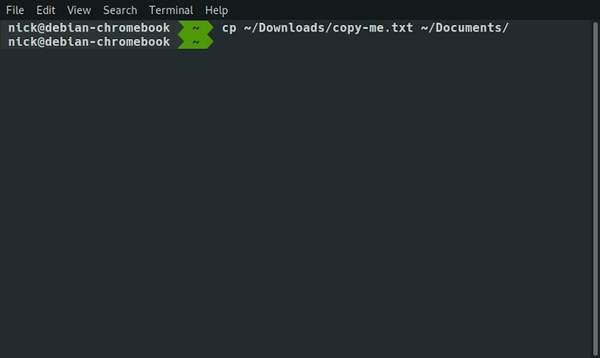
当然,这假定您的文件位于要处理的目录中。您可以同时指定。
cp ~/Downloads/your-file.txt ~/Documents/
您还可以选择在复制文件时重命名文件。在目的地中指定新名称。
cp ~/Downloads/your-file.txt ~/Documents/new-name.txt
复制和粘贴文件夹及其内容
为了复制文件夹及其内容,您将需要告诉cp命令以递归方式复制。使用-r标志就足够简单了。
cp -r ~/Downloads/pictures-directory ~/Pictures/family-vacation-pics
Linux Cli Copy Folder
All the rest of your syntax is exactly the same. The -r flag serves to tell cp that it’s working with a directory and should copy its contents.

If you want the paste action to overwrite existing files, you can add the -f flag:

cp -rf ~/Downloads/pictures-directory ~/Pictures/family-vacation-pics
Copy and Paste Multiple Files
You can also copy multiple files. The Linux command line lets you target multiple items at once with brackets {}. You can use them to list the names of each file to be copied separated by commas.

cp ~/Downloads/{file1.txt,file2.jpg,file3.odt} ~/Documents/
Linux Cli Copy Multiple
All three files of differing file types will be copied to the Documents directory.

Copy and Paste All Files of the Same Type
If you have a ton of files of the same type to copy, you can use the wildcard character *. The asterisk/wildcard tells the Linux command line to accept absolutely anything in that place. So, if you tell Linux to copy *.jpg, it’ll copy all JPG files, regardless of the name or whatever comes before the .jpg part.

cp ~/Downloads/*.jpg ~/Pictures/
Linux Cli Copy All File Type
If you want to use multiple file types, say JPG and PNG, you can use the brackets from before.

cp ~/Downloads/*.{jpg,png} ~/Pictures/
Move a File or Folder
If you came here looking to move a file from one place to another without making a duplicate, you can do that easily too, but moving a file requires the mv command. The syntax is very similar to cp.

mv ~/Downloads/your-file.txt ~/Documents/
Similarly, you can also rename it.

mv ~/Downloads/your-file.txt ~/Documents/renamed.txt
There is one major difference, though. You don’t need the -r flag to move a whole folder.

mv ~/Downloads/downloaded-folder ~/Pictures/vacation-pics
That’s all there is to it. You’re ready to start copying and moving your files from the command line. You can see that the command line way can be very efficient in some situations.

Want more pointers on the Linux command line? Here’s how to check sudo history or find out what the chmod 777 command does to your file permission.

Image credit: Copy – Paste by DepositPhotos

Is this article useful?

Popular Posts

Xfce Review: A Lean, Mean Linux Machine


How to Hide the Top Bar and Side Panel in Ubuntu 20.04


How to Share Files Between Android and Ubuntu on Your Network


How to Fix High CPU Usage in Linux


How to Speed Up Your Linux Desktop with Compton

Affiliate Disclosure: Make Tech Easier may earn commission on products purchased through our links, which supports the work we do for our readers.

Never Miss Out
Receive update of our latest tutorials.

Your email address
See all newsletters | Privacy Policy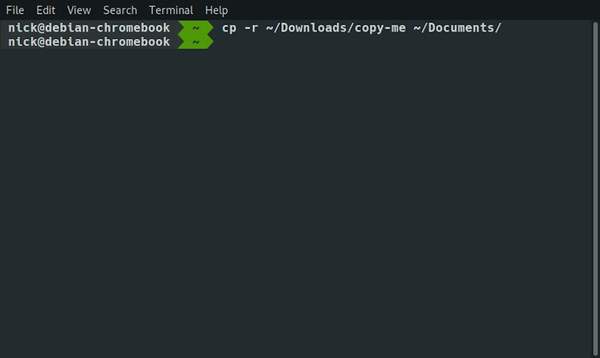
您其余所有语法都完全相同。该-r标志用于告诉cp它正在使用目录,并且应该复制其内容。
如果希望粘贴操作覆盖现有文件,则可以添加-f标志:
cp -rf ~/Downloads/pictures-directory ~/Pictures/family-vacation-pics
复制并粘贴多个文件
您也可以复制多个文件。Linux命令行使您可以使用括号同时定位多个项目{}。您可以使用它们列出要复制的每个文件的名称,并用逗号分隔。
cp ~/Downloads/{file1.txt,file2.jpg,file3.odt} ~/Documents/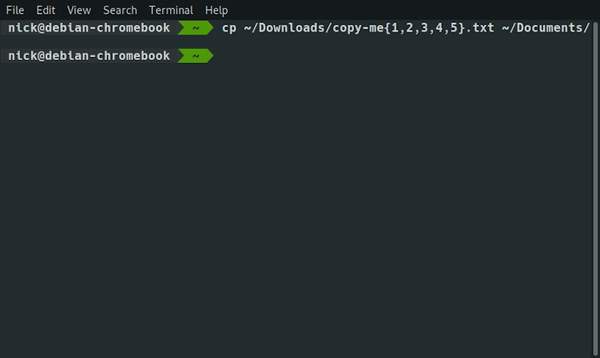
具有不同文件类型的所有三个文件都将被复制到Documents目录中。
复制和粘贴相同类型的所有文件
如果要复制大量相同类型的文件,则可以使用通配符*。星号/通配符告诉Linux命令行在该位置绝对接受任何内容。因此,如果您告诉Linux复制*.jpg,它将复制所有JPG文件,而不管名称是.jpg部分之前是什么。
cp ~/Downloads/*.jpg ~/Pictures/
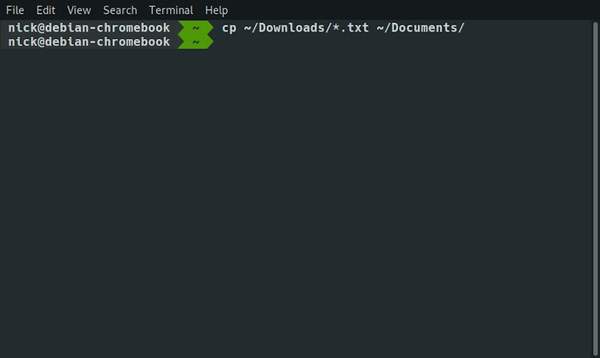
如果要使用多种文件类型(例如JPG和PNG),则可以使用之前的括号。
cp ~/Downloads/*.{jpg,png} ~/Pictures/移动文件或文件夹
如果您来这里是想将文件从一个位置移动到另一个位置而不进行复制,那么您也可以轻松地做到这一点,但是移动文件需要mv命令。语法与cp非常相似。
mv ~/Downloads/your-file.txt ~/Documents/
同样,您也可以重命名它。
mv ~/Downloads/your-file.txt ~/Documents/renamed.txt
但是,有一个主要区别。您不需要-r标志来移动整个文件夹。
mv ~/Downloads/downloaded-folder ~/Pictures/vacation-pics
这里的所有都是它的。您已经准备好从命令行开始复制和移动文件。您会看到命令行方式在某些情况下可能非常有效。
在Linux命令行上需要更多指针吗?这是检查sudo历史记录或查明chmod 777命令对文件权限的作用的方法。
相关推荐
-
解决linux虚拟机与windows之间互相复制粘贴文件
平时我们在Windows中装了虚拟机后,发现两者之间互传文件是非常不方便的,能不能通过一定的方法来实现两者之间不需要U盘的互相拷贝,来实现文件的复制粘贴. 操作方法 01 其实在Ubuntu中,提供了 ...
-
11个炫酷的Linux终端命令大全
今天给大家分享用了十年的Linux总结出来的11个炫酷的Linux终端命令大全,通过今天这篇文章我将向大家展示一系列的Linux命令、工具和技巧,我希望一开始就有人告诉我这些,而不是曾在我成长道路上绊 ...
-
Vim 复制粘贴探秘
每当学会了vim的一个新功能,就会很大地提高工作效率。有人使用vim几十年,还没有完全掌握vim的功能,这也说明了vim的强大。而这样何尝不是一件好事呢,只要有的学习,就有的提高。 最近使用Vim来写 ...
-
win8远端服务器不能复制粘贴,怎么办?
windows服务器远程桌面时可以设置同不并且实现远程复制粘贴了,但是今天突然发现复制粘贴无效季,那么要如何解决呢? 方法一 最近经常用 Windows 的远程桌面连接(RDP)来操作学校里的电脑.今 ...
-

vim复制粘贴命令(vim复制粘贴快捷键)
请关注本头条号,每天坚持更新原创干货技术文章.如需学习视频,请在微信搜索公众号"智传网优"直接开始自助视频学习1. 前言本文主要讲解Linux中的命令行界面文本编辑器vim如何进行 ...
-
Linux终端如何安装Tomcat 7
本次安装建立在Ubuntu 14.04上.采用putty连接终端. 安装Jdk 01 由于Tomcat需要JDK的支持,所以在安装Tomcat之前需要先安装JDK.假如安装了JDK则跳过该步,直接看安 ...
-
远程桌面无法复制粘贴的故障检查办法及解决方案
大家常常会遇到mstsc远程桌面的时候,发现本地和远程之间不能够复制和粘贴文本内容,大家可能会很疑惑是什么原因? 检查本地是否开启剪贴板 01 win+r运行远程桌面命令 02 展开显示选项操作 03 ...
-
excel怎样不用复制粘贴实现列剪接
excel用户有时需要把某些列的内容剪接连成一列,一般情况下直接用复制粘贴即可实现列拼接。而当行数太多时,直接粘贴,有可能导致软件崩溃或是电脑死机,分段复制粘贴操作又太繁复,这个时候脑筋转一下弯。 如 ...
-
UC浏览器里任意复制粘贴文本的方法
由于诺基亚5800xm是智能机,使用uc想复制粘贴文本时,没有直板健盘手机方便,但复制粘贴这个基本的功能实在是好用。为了让大家可以更加方便的使用复制与粘贴功能,为大家分享“巧用UC浏览器 任意复制粘贴 ...
-
Excel复制粘贴过程中的效果预览的方法步骤
在日常的办公操作当中,复制粘贴命令是执行的非常频繁的操作,在粘贴完成之后难免会遇到对粘贴效果不满意的情况,在早期版本的Excel中,只能选择删除或者撤销命令来撤销最终的粘贴结果,但是在Excel201 ...
